Gemini CLI — Getting Started (Enterprise)
Enterprise installation and setup for Gemini CLI via Vertex AI. Product is deprecated for public use — replaced by Google Antigravity. Covers enterprise auth, sandbox modes, and first session.
Deprecated for public use:
Gemini CLI is no longer available for individual consumers. It has been replaced by Google Antigravity. Enterprise customers can continue using Gemini CLI through Vertex AI.
Gemini CLI — Getting Started (Enterprise)
Gemini CLI is Google's enterprise terminal-based AI coding agent for Vertex AI customers, with a 1M+ token context window. It runs the Gemini 2.5 Pro model, integrates with Google's ecosystem (Drive, Gmail, Calendar), and supports sandboxed execution for safer autonomous coding. Note that Gemini CLI has been deprecated for individual consumers in favor of Google Antigravity.
Enterprise Installation
Gemini CLI is available to Vertex AI customers. Contact your Google Cloud account team for access.
# Via npm (enterprise only)
npm install -g @google/gemini-cli

# Verify
gemini --version
Authentication (Vertex AI)
Enterprise authentication uses Google Cloud service accounts:
# Authenticate via Google Cloud
gcloud auth application-default login

# Set your project
gcloud config set project YOUR_PROJECT_ID

# Verify auth
gemini auth status
For non-interactive environments (CI/CD):
# Set up a service account at console.cloud.google.com
export GOOGLE_APPLICATION_CREDENTIALS="/path/to/service-account.json"
gcloud auth application-default login
Sandbox Modes
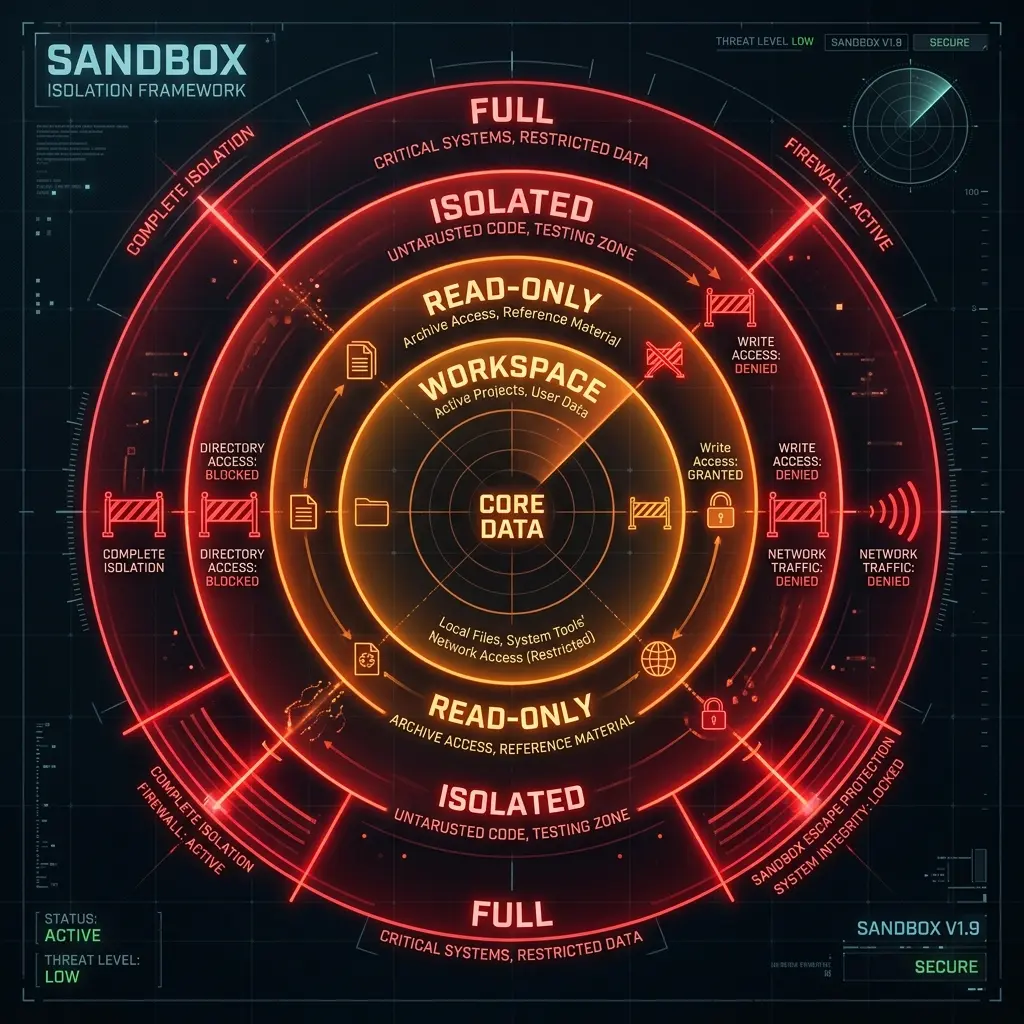
Gemini CLI runs commands in configurable sandboxes to prevent unintended changes:
| Mode | File Access | Network | Commands | Best For |
|---|---|---|---|---|
| workspace | Project directory only | Yes | Read + write | Normal development |
| read-only | Project directory only | Yes | Read only | Code review, analysis |
| isolated | Nothing | No | None | Safe exploration |
| full | Everything | Full | Everything | CI/CD, trusted contexts |
Set the default mode:
# In gemini.yaml
sandbox:
  mode: workspace
  allowedDirectories:
    - ./src
    - ./lib
    - ./public
First Session
cd my-project
gemini
First-start experience:
⚡ Welcome to Gemini CLI
  Model: gemini-2.5-pro
  Context: 1,048,576 tokens
  Sandbox: workspace (project directory)

  Type /help for commands.

>
Essential Slash Commands
| Command | What it does |
|---|---|
/help | Show all commands |
/sandbox <mode> | Change sandbox mode |
/auth | Manage authentication |
/clear | Clear conversation |
/context | Show context window usage |
/export | Export session to markdown |
/config | Open gemini.yaml |
/tools | List available tools/extensions |
/extensions | Manage Google extensions |
Project Configuration: GEMINI.md
Create GEMINI.md (or .gemini/GEMINI.md) at project root:
# GEMINI.md

## Commands
- `npm run dev` — Start dev server
- `npm run build` — Production build
- `npm run test` — Vitest test suite
- `npm run lint` — ESLint + TypeScript

## Architecture
- Vite + React 19 with React Router v7
- Zustand for client state, React Query for server state
- Tailwind CSS v4 with custom design tokens

## Sandbox Rules
- Keep sandbox at `workspace` — never switch to `full`
- Allowed directories: src/, lib/, tests/, public/
- Blocked: node_modules/, .env, dist/

## Google Integration
- Google Drive folder: team/docs/shared — read only
- Google Calendar: check before scheduling changes
Google Ecosystem Integration
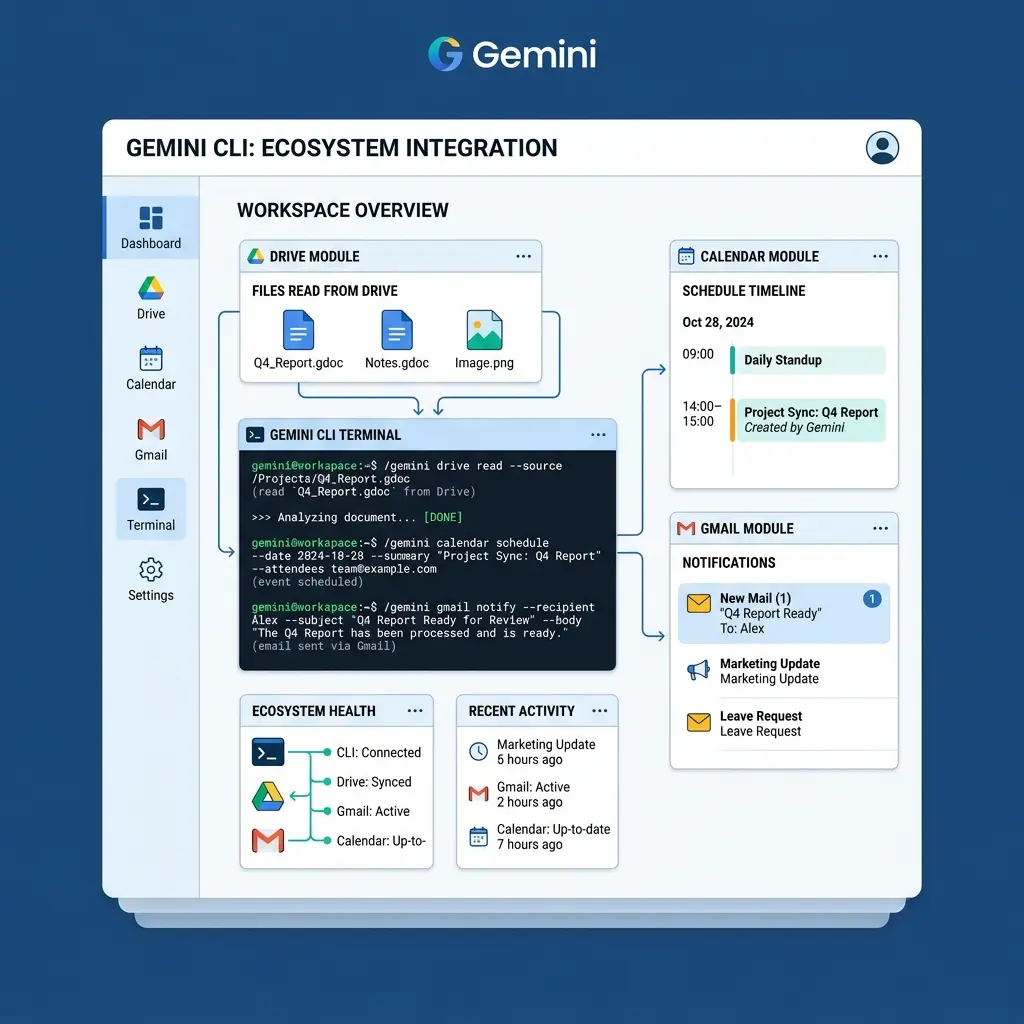
Gemini CLI connects to Google services via extensions:
# Enable extensions
gemini extensions enable google-drive
gemini extensions enable google-calendar
gemini extensions enable gmail
Then in prompts:
> Read the design spec from Google Drive (team/docs/specs/v2.md)
  and compare it with our current implementation in src/components/.
  List gaps.
Context Window Advantage
With 1M tokens, Gemini CLI can hold your entire codebase in context. Use this for:
- Full codebase analysis — "Find every place we use
localStorageand assess whether it should besessionStorage" - Cross-cutting refactors — "Rename
UsertoAccountacross the entire codebase and update all references" - Documentation generation — "Read every API route and generate OpenAPI specs"
Related Pages
- Prompt Engineering in Gemini CLI — Ralph loop, extensions, prompt patterns
- Gemini CLI Configuration — gemini.yaml, MCP, .gemini/ conventions
- Tool Comparison — Gemini CLI vs Claude Code vs OpenCode vs Cursor vs Copilot
- Mastering Gemini CLI (Blog) — Comprehensive Gemini CLI guide with sandboxing and CI/CD
Related Articles & Guides
Gemini CLI — AI Coding Agent (Enterprise Only)
Enterprise guide to Gemini CLI for Vertex AI customers. Product is deprecated for public use — replaced by Google Antigravity. Covers enterprise installation, configuration, sandbox modes, and Google ecosystem integration.
Gemini CLI — Configuration Reference (Enterprise)
Enterprise Gemini CLI configuration reference. Covers gemini.yaml settings, MCP integration, .gemini/ directory conventions, sandbox configuration, extension management, and environment variables for Vertex AI deployments.
Prompt Engineering in Gemini CLI (Enterprise)
Enterprise prompt engineering for Gemini CLI. The Ralph loop, system instruction files, sandbox-aware prompting, Google extension patterns, and 1M context strategies for Vertex AI.