Prompt Engineering in Gemini CLI (Enterprise)
Enterprise prompt engineering for Gemini CLI. The Ralph loop, system instruction files, sandbox-aware prompting, Google extension patterns, and 1M context strategies for Vertex AI.
Deprecated for public use:
Gemini CLI is no longer available for individual consumers. It has been replaced by Google Antigravity. Enterprise customers can continue using Gemini CLI through Vertex AI.
Prompt Engineering in Gemini CLI (Enterprise)
Gemini CLI's unique differentiators — 1M+ context, Google ecosystem integration, and sandboxed execution — demand different prompt strategies than other coding agents. Here's how to leverage them.
The Ralph Loop: Understand the Execution Model
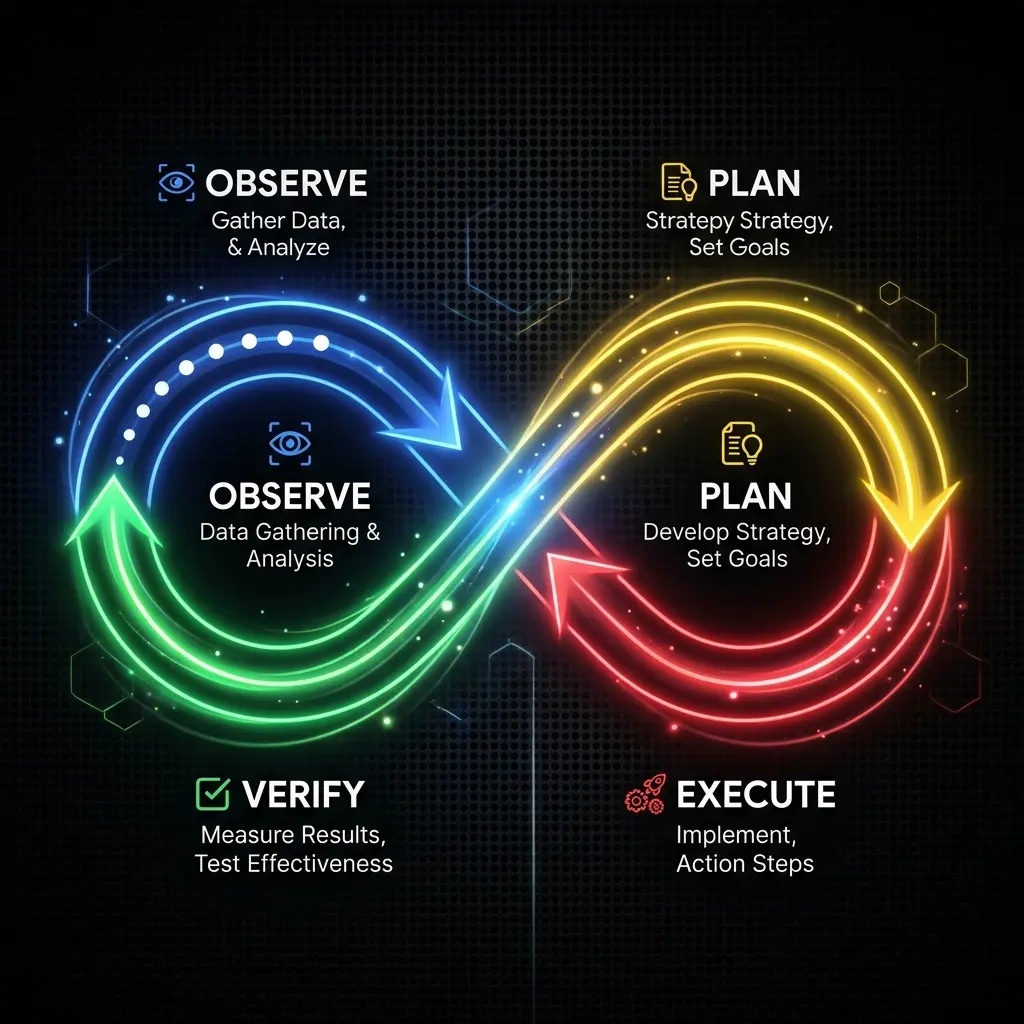
Gemini CLI uses a "Ralph loop" (Observe → Plan → Execute → Verify) for agentic tasks:
- Observe — Reads files, checks git status, inspects project structure
- Plan — Forms a plan and shows you before executing
- Execute — Runs commands, writes files, makes changes
- Verify — Checks results, runs tests, confirms correctness
Write prompts that work with this loop:
> First, OBSERVE: Read src/services/payment.ts and trace every
  error path.

  Then PLAN: Identify the 3 most likely failure points.
  Show me the plan before executing.

  Then EXECUTE: Add proper error handling at each point.

  Finally VERIFY: Run the payment tests and show results.
Guiding the Ralph Loop
The loop is automatic, but you can hint at which phase needs more attention:
Observation-heavy:
> Deep observation mode: Read every file in src/auth/ and create
  a detailed dependency map. Don't propose changes yet — I just
  need a complete picture of how auth flows through the system.
Plan-heavy:
> I need 3 alternative architecture plans for adding WebSocket
  support. Each plan should cover: data flow, error handling,
  scaling considerations. Do NOT implement — only plan.
Verification-heavy:
> After each change you make, verify with ALL of these:
  1. TypeScript type check (`npm run typecheck`)
  2. Related unit tests (`npx vitest run -- src/affected/`)
  3. Lint rules (`npm run lint`)
  Do not proceed to the next change until all verifications pass.
System Instructions: GEMINI.md
Gemini CLI reads GEMINI.md (or .gemini/GEMINI.md) every session. Structure it for Gemini's strengths:
# GEMINI.md — Project System Instructions

## Identity
You are a senior full-stack engineer working on a SaaS product.
Write production-quality TypeScript. No shortcuts, no TODOs left behind.

## Analysis Mode (Default)
Before making any changes:
1. Read at least 3 related files to understand context
2. Summarize your understanding before proposing changes
3. Ask clarifying questions if requirements are ambiguous

## Google Integration
- When asked about documentation, check Google Drive first
- When asked about scheduling, check Google Calendar for conflicts
- Use Gmail extension for sending notifications after deploys

## Sandbox Constraints (NEVER OVERRIDE)
- Mode: workspace
- Never read from ~/, /etc/, /var/
- Never write outside src/, lib/, tests/, docs/
- Never access .env files or any file with "secret" or "key" in the name
GEMINI.md Best Practices
Be explicit about observation: Gemini has the largest context window — tell it to use it.
## Context Usage
- Before architectural changes: read and index the entire project
- Before bug fixes: read the file + all imports + test files
- Before documentation: read the file + related README files
Leverage the sandbox:
## Sandbox Rules
Mode: workspace
- Safe directories: src/, lib/, tests/, docs/, public/
- Read-only directories: node_modules/ (for type checking only)
- Never access: .env*, *secret*, *key*, *token*
Prompt Patterns for Gemini CLI
Pattern 1: Full Codebase Analysis
Gemini's 1M context is its superpower:
> Read the entire codebase and create a comprehensive analysis:

  1. Architecture: How are the layers organized? What patterns repeat?
  2. Tech debt: Where are the duplicate patterns? What's over-engineered?
  3. Testing gaps: Which critical paths have no test coverage?
  4. Security concerns: Where are inputs not validated?

  Format as a structured report. Do NOT make changes.
Pattern 2: Google Ecosystem Prompting
Chain Google services with code tasks:
> 1. Check my Google Calendar for the next team meeting
> 2. Read the meeting agenda from Google Drive (team/agendas/)
> 3. Check our codebase for features mentioned in the agenda
> 4. Create a status report showing what's done and what's not
> 5. Save the report to Google Drive (team/reports/status-{date}.md)
Pattern 3: Sandbox-Aware Commands
Always specify sandbox expectations:
> [Sandbox: workspace, src/ only]
> Refactor src/components/Dashboard/ — split the 500-line component
  into smaller components. Do NOT touch anything outside src/components/Dashboard/.
Pattern 4: Incremental with Verification
> Task: Add input validation to the signup form.

  Phase 1: Read src/forms/signup.tsx and all related validation files.
  Show me which fields need validation and your proposed rules.

  [Wait for approval]

  Phase 2: Implement validation. After EACH field you add:
  - Run `npx vitest run -- src/forms/signup.spec.tsx`
  - If tests fail: fix before proceeding

  Phase 3: Final verification
  - Type check entire project
  - Run full test suite
  - Show me a summary of all changes made
Pattern 5: Multi-Extension Workflows
Combine multiple Google services:
> For this feature, I need to:
  1. Read the design spec from Google Drive (team/designs/v3/)
  2. Check if any team meetings (Google Calendar) discuss this feature
  3. After implementation, email the team (Gmail) with the changes
  4. Update the feature tracker in Google Sheets (team/tracking)

  Start by reading the design spec and telling me what you understand.
Common Pitfalls
Wasting the 1M Context
> How do I center a div?   ← Wrong tool for simple questions

> Analyze our entire middleware stack across 47 files and identify
  redundant auth checks.   ← Right use case
Ignoring Sandbox Boundaries
> [workspace sandbox is active]
> Install a new npm package and set up the database   ← Will fail (blocked)
If you need full access, change the sandbox intentionally:
> /sandbox full
> Install prisma and set up the initial database migration.
> /sandbox workspace   ← Switch back when done
Not Using Extensions Explicitly
> What's on my calendar?   ← Too vague

> /extensions status
> Use Google Calendar to check my schedule for tomorrow.
Related Pages
- Gemini CLI Getting Started — Installation and setup
- Gemini CLI Configuration — gemini.yaml, MCP
- Tool Comparison — Gemini CLI vs Claude Code vs OpenCode vs Cursor
- MCP + Gemini CLI — MCP servers that work with Gemini CLI
Related Articles & Guides
Gemini CLI — Configuration Reference (Enterprise)
Enterprise Gemini CLI configuration reference. Covers gemini.yaml settings, MCP integration, .gemini/ directory conventions, sandbox configuration, extension management, and environment variables for Vertex AI deployments.
Gemini CLI — Getting Started (Enterprise)
Enterprise installation and setup for Gemini CLI via Vertex AI. Product is deprecated for public use — replaced by Google Antigravity. Covers enterprise auth, sandbox modes, and first session.
Gemini CLI — AI Coding Agent (Enterprise Only)
Enterprise guide to Gemini CLI for Vertex AI customers. Product is deprecated for public use — replaced by Google Antigravity. Covers enterprise installation, configuration, sandbox modes, and Google ecosystem integration.